Table of Contents
Using Gmail for VeMail
More information on VeMail in general can be found here.
Most email providers work just fine with VeMail.
However, some providers do not. This is most likely due to security settings on the email server. Often, a security update could be applied to an existing DuVoice VeMail integration, that then restricts DuVoice from integrating anymore.
So, if your current provider is unable to integrate with DuVoice VeMail, you should opt for using Gmail, as it is tested functional alternative.
Requirements
- VeMail integration with Gmail requires you to create a Gmail account with Google.
- This account requires 2FA enabled.
- More details to follow under 2FA instructions.
- This account CANNOT be part of an organization.
- It Must be a standard '@gmail.com' account.
- Using the reply-to-delete feature with Gmail, requires DuVoice v8.1.31.
- This is for IMAP integration.
Overview
Gmail Configuration
- Create the account.
- Set up 2FA.
- Create an App Password.
- If using Reply-To-Delete feature, add extra settings to Gmail account.
- A note on troubleshooting Gmail issues.
DuVoice Configuration
Google Account Setup
If you're stuck on something, you could reach out to DuVoice support for a pointer.
If there are specific issues with your Gmail account, DuVoice Support may refer you to get in touch with Google's support as needed.
It is also recommended monthly, to clear out old emails within your Gmail account.
Creating the Google Account
- It is not recommended to use an existing account.
- Since this account is going to be dedicated for your site's DuVoice VeMail.
Instructions
- Open a web browser.
- Go to: https://www.google.com
- Click “Sign in”.
- You’ll find it in the top-right corner of the page.
- Select “Create account”.
- A menu will appear, choose: “For myself”.
- Enter your name.
- Type your first and last name.
- Then click Next.
- Choose a username
- This will be your new Gmail address (example: username@gmail.com).
- If it’s taken, Google will suggest alternatives.
- Create a password
- Enter a strong password, then confirm it. Click Next.
- Verify your phone number (optional but recommended)
- Google may send a verification code via text. Enter the code when prompted.
- Add recovery information
- You can add a recovery email address (optional) and confirm your phone number.
- Enter your birthday and gender
- This helps with account security and personalization.
- Review Google’s Privacy and Terms
- Scroll through the terms, then click “I agree.”
- Account created
- You’ll be taken straight to your new Gmail inbox.
2-Step Verification
Now, we need to make sure that 2FA is enabled on the Gmail account.
Instructions
- Log in with your google account at: https://myaccount.google.com/
- This can also be accessed on a Google page
- Click on your profile picture, in the top right.
- Then click “Manage your Google Account”.

- Then on the left side, navigate to the “security” tab and click on it.

- On that page there should be a portion that is labeled “How you sign in to Google” with a line labeled “2-step verification”.
- If there is not a green check mark to the right of that text, 2FA is not set up.
- Only enter a phone number for 2FA.
- Do not set up passkeys, or any other method.
- This could affect your ability to create the required App Password.
- If you need additional 2FA instructions, Google has a guide here: https://support.google.com/accounts/answer/185839

Setting an App Password
Once we have 2FA verified to be set up, we can move to the next step. We are going to want to set up a third-party password.
- Return to the account security page, click.
- Click “2-step verification”
- It's under the “How you sign in to Google” section.
- On this new page, scroll down to the bottom
- Select the section labeled “App passwords”.
- There should be a box with an arrow, click it.

- On the new page, it will ask you to type in the app name.
- “DuVoice VeMail” would be a suitable choice.

- Then click create.
- It will open a new window with a 16 character password.
- There are four sets of four characters, be sure to ignore the spaces.
- Please make note of this password.
- It's required to set as the password for DuVoice VeMail configuration.
- As mentioned before, make sure to remove the spaces when putting it in the password field.

Gmail settings
- Only needed if using the Reply-To-Delete feature (using IMAP).
Creating Filter and Label
- Open Gmail
- Go to mail.google.com and sign in to your account.
- Open the filter search options
- Click the small downward arrow on the right side of the search bar at the top.
- Enter filter criteria
- Fill in these specific fields:
- To: (enter your Gmail address)
- Has the words:
VeMail
- Click “Create filter”
- This button is at the bottom-right of the search options box.
- Choose what the filter should do
- Select this specific action:
- Apply the label:
- Create new label
- Named:
VeMail-Reply-To-Delete
- Click “Create filter”
- The filter is now active and will automatically apply to future emails.
DuVoice VeMail Configuration
If you need any help for the DuVoice side of the programming, please reach out to DuVoice Support.
Find VeMail Settings
- Open DV2000 Manager
- Application on DuVoice server's desktop.
- Click 'system'.
- Drop down menu at the top of the window.
- Click 'VeMail'.
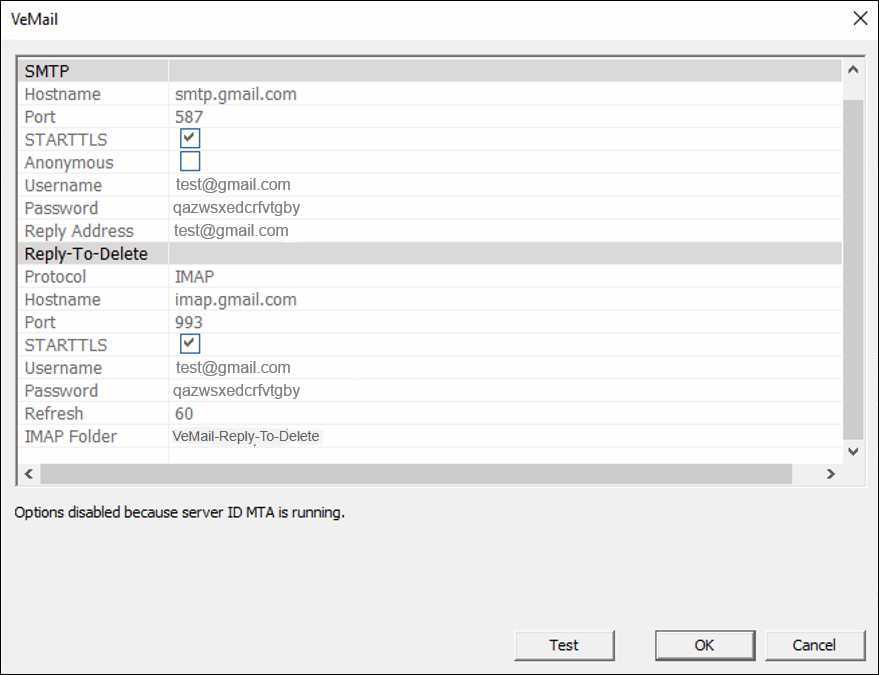
- Here are the fields to configure:
SMTP Integration
This configuration is required for VeMail notifications.
| SMTP Field | Data |
|---|---|
| SMTP Server | smtp.gmail.com |
| Reply-To Address | Enter your Gmail address. |
| Port | 587 |
| STARTTLS | checked |
| Username | (Your Gmail account) |
| Password | Enter the app password (NOT YOUR GMAIL PASSWORD). |
IMAP Integration
This configuration is required to use the Reply-To-Delete feature.
| Reply-To-Delete | Data |
|---|---|
| Protocol | IMAP |
| POP3 Server | imap.gmail.com |
| Port | 993 |
| STARTTLS | checked |
| Username | Enter your Gmail address. |
| Password | Enter the app password (NOT YOUR GMAIL PASSWORD). |
| Refresh | 60 |
| IMAP Folder | VeMail-Reply-To-Delete |