Table of Contents
IP Office v12
All configuration is performed from the Avaya IP Office Manager application. This application can be installed on the DuVoice system without interfering with the DuVoice operation. This is highly reccommended for easy configuration checks by DuVoice technical support.
Features
- Telephony Integration:
- Guest Voicemail.
- Message Waiting (MWI) set/clear.
- Hospitality Integration:
- User rights changes (COS).
- Name display change.
- DND via Call Forward All.
- EAS Integration:
- Emergency Alert Notification (EAS).
Requirements
- DuVoice 8.0 or above.
- IP Office version 12 and above.
- Known working on:
- 12.0
- 12.1
- 12.2
- 12.3
- LAN connection.
- IP Office manager software is required to be installed on the DuVoice server:
- Allows for easier programming and troubleshooting.
- Required for hospitality integration.
- See DLL section under hospitality integration below.
- One license of 3rd Party IP Endpoints for every line of DuVoice.
- Voice Compression Module. Example: VCM64/ATM4.
TCP/UDP Ports Used
Ports which should be unblocked for incoming network traffic between Avaya IPO and DuVoice Application.
| Number | Protocol | Description |
|---|---|---|
| 5060-5061 | UDP | Used for SIP communication |
| 49152-49408 | UDP | Used for RTP SIP traffic |
| 50805 | TCP/UDP | Used for Avaya PBX Link |
| 50794 | TCP/UDP | Used for Avaya Devlink Connection |
Telephony Integration
IP Office Configuration
When configuring an IP Office Server solution you must manage users, extensions and groups discussed here on the server and not under Solution. If you have additional IP500's connected to the solution it is suggested to manage them via that specific Server rather than under Solution.
IP500 and Server Editions are configured the same with the exception of voicemail support and optional changes for forwarding.
Security Settings
These changes must be made by logging into the security configuration of the PBX using Avaya IP Office Manager located under File | Advanced | Security Settings….
Login using the security account.
Default username and passwords:
User Name: security
Password: securitypwd
Services and System Settings
These settings allow the DuVoice to change names and other settings. For Emergency Alert (EAS) DevLink is required. TAPI is required if using Station Monitor.
Services Section
| Setting | Description |
|---|---|
| Service Security Level | Select Unsecure + Secure. |
| Security Access Source | Select Server Edition Manager for Server Edition and Unrestricted for IP500. |
System Section
| Setting | Description |
|---|---|
| DevLink | Check this box for EAS support. |
| Minimum Protocol Version | Select TLS 1.0 from the Drop down menu (Option was added in IPO v11.1) |
Certificate Update
The IP Office name change interface requires a valid certificate on the IP Office. If this certificate is expired then name changes and CTI interfaces will fail. Typically there is no need to manage this section but it's noted here to verify proper configuration.
Configuration
System
LAN1 / Voip
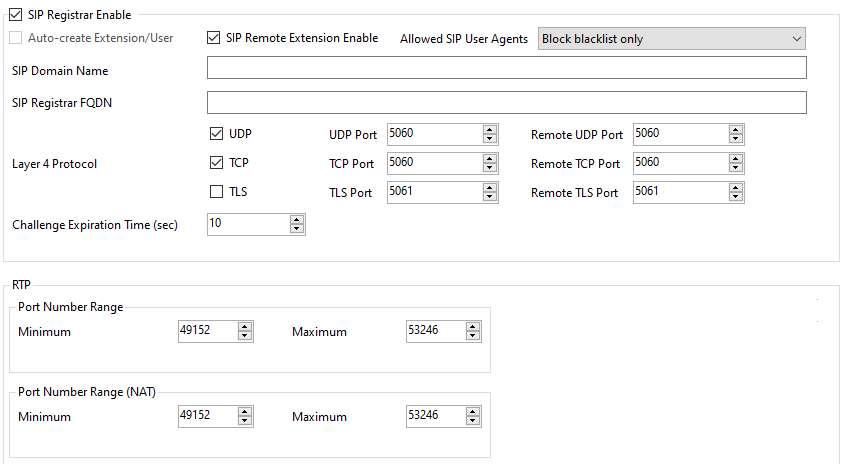
| Setting | Description |
|---|---|
| SIP Register Enable | Allow SIP extensions to register with PBX. |
| Auto-create Extension/User | This field should be unchecked for most installations for additional security. |
| SIP Domain Name | Optional domain name PBX is a member of. If specified this should be entered as the domain name in System Configuration under SIP Configuration. |
| UDP Port | This must be 5060 (default). |
| TCP Port | This must be 5060 (default). |
Note: DuVoice does not support TLS.
Extension
A SIP extension must be created for each line of DuVoice.
Extension
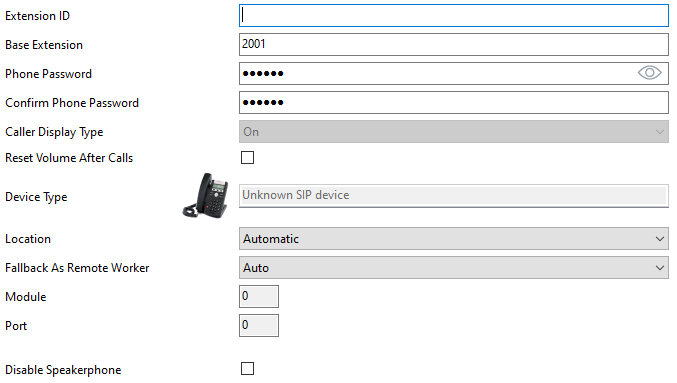
| Setting | Description |
|---|---|
| Base Extension | Enter an extension number for the DuVoice line. |
| Phone Password | Enter the password to be used to login as this extension. |
VoIP
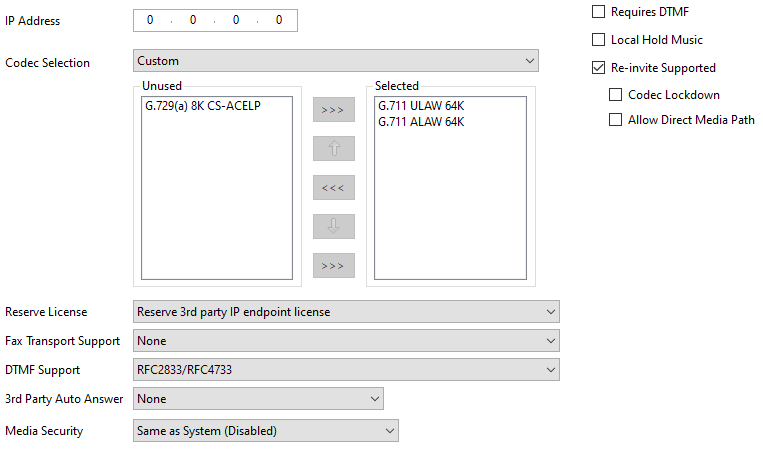
| Setting | Description |
|---|---|
| IP Address | Leave this field as 0.0.0.0 (default). |
| Codec Selection | Choose Custom and only add G.711 ULAW 64K and G.711 ALAW 64K. These are the only codecs supported by DuVoice. |
| Requires DTMF | Check this field. |
| Re-invite Supported | Check this field. |
| Allow Direct Media Path | Uncheck this field. |
| Reserve License | Set to Reserve 3rd party IP endpoint license to insure the DuVoice retains it's SIP license. |
| Fax Transport Support | DuVoice does not support FAX via SIP therefore this field should be set to None. |
| DTMF Support | Choose RFC2833/RFC4733 (default). If the system encounters issues with hearing DTMF set this to Inband. |
User
A User must be created for each extension created.
User

| Setting | Description |
|---|---|
| Name | Enter a unique name for this user. |
| Password | This must be blank. |
| Full Name | Enter a unique name for this user. It is suggested to include the site name rather than DuVoice in case callers have a phone with a display. |
| Extension | Enter the extension number to associate with this user. |
Voicemail
| Setting | Description |
|---|---|
| Voicemail On | UNCHECK this field. |
Telephony
Call Settings
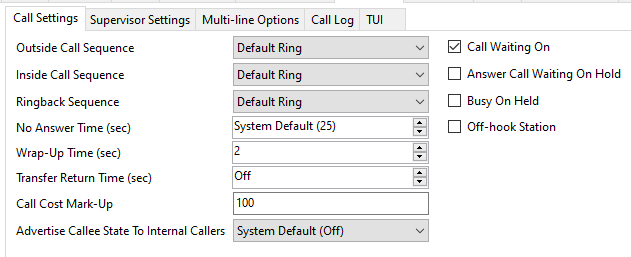
| Setting | Description |
|---|---|
| Call Waiting On | Check this feature. If this is unchecked the DuVoice system will not be able to transfer calls. |
Button Programming

Remove all line appearances expect for Button 1.
Groups
Create a huntgroup for the DuVoice lines.

| Setting | Description |
|---|---|
| Name | Enter a unique name. |
| Extension | Enter a group number. This number should be programmed as the voicemail button on any guest phones. |
| Ring Mode | Must be set to Sequential to be used as a Group Voicemail destination. |
| User List | Enter the users created for the DuVoice lines. |
Queuing
This feature should be disabled.
Overflow

It is suggested to create a group for the operators and set the overflow to be directed towards that group.
Voicemail
This feature should be disabled for this group.
Voice Recording
This feature should be disabled for this group.
Announcements
This feature should be disabled for this group.
System Voicemail
Only IP500 supports voicemail groups. If the location is using the DuVoice as the primary voicemail set the voicemail type to Group Voicemail in the IPOffice System>Voicemail Tab, otherwise this setting can be anything. If Group Voicemail is not to be used for IP500, follow the instructions to configure forwarding short codes or in conjunction with Embedded or Voicemail Pro. If using IPO Server Edition, Group Voicemail is not an option and the forwarding short codes will need to be used for DuVoice voicemail.
| Setting | Description |
|---|---|
| Voicemail Type | Set to Group Voicemail if location is using DuVoice for all voicemail. |
| Messages Button Goes To Visual Voice | This must be unchecked when using Group Voicemail. It can only be unchecked if the Voicemail Type is not Group Voicemail. |
| Voicemail Destination | Choose the group for the voicemail. |
Short Codes
If you are configuring shortcodes on a IPO Server Edition, all shortcodes should be configured at the Solution level.
Forward to Voicemail
When using IP Office Server Edition with multiple IP Offices at a single location this shortcode is required.
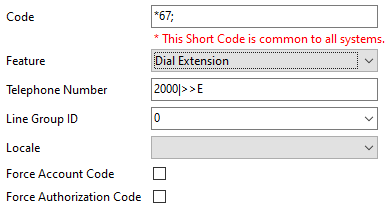
| Setting | Description |
|---|---|
| Code | *67; |
| Feature | Dial Extension |
| Telephone Number | Enter the DuVoice group number followed by |>>E |
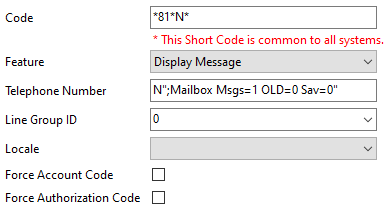
MWI ON
Used to set MWI for a station.
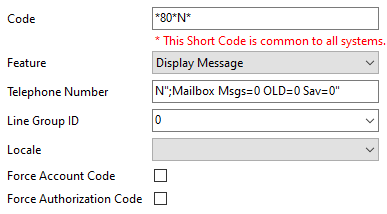
MWI OFF
Used to clear MWI for a station.
Housekeeping
Create a new shortcode to create a process for housekeeping to punch in codes with.
| Setting | Description |
|---|---|
| Code | *61N |
| Feature | Dial Extension |
| Telephone Number | Enter the DuVoice group number followed by three commas, then followed by 61N, example 21880,,,61N |
Call Forwarding
Call Forward On
This code is used when a guest room requests do not disturb (DND) on. This is only required when DuVoice is not the Group voicemail for the system because setting DND for a user does not use the forward settings.
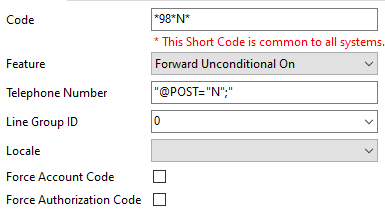
| Setting | Description |
|---|---|
| Code | *98*N* |
| Telephone Number | “@POST=“N”;” |
Call Forward Off
This code is used when a guest room requests do not disturb (DND) off. This is only required when DuVoice is not the Group voicemail for the system because setting DND for a user does not use the forward settings.
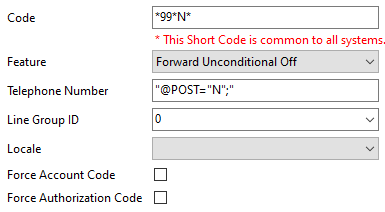
| Setting | Description |
|---|---|
| Code | *99*N* |
| Telephone Number | “@POST=“N”;” |
Operator
DuVoice typically assigns the operator mailbox extension “0”. This will be dialed for transfers to the operator, Failed wakeup alerts, and possible 911 Emergency alerts. IP Office does not have a 0 extension by default therefore it's required to configure a shortcode that will direct calls to 0 or the appropriate extension/group. Typical installations this is the reception desk.
User Rights
For hospitality systems at least two User Rights groups must be created. By default the DuVoice uses the names RESTRICTED for rooms which are checked out and UNRESTRICTED for those which are checked in. Group names are case-sensitive so care should be taken when creating them.
Staff and Guest Phones
For staff and guest phones using the DuVoice as their voicemail follow these steps.
User | Voicemail
| Setting | Description |
|---|---|
| Voicemail On |
User | Forwarding
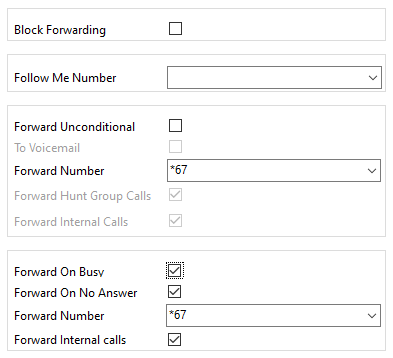
| Setting | Description |
|---|---|
| Forward Unconditional | This should be unchecked. This field will be automatically checked by the DuVoice system when using Call Forward all rather than DND. |
| Forward Number | Enter the short code created for forwarding, default is *67. If this field is left blank calls will not be forwarded when DND is requested by the system. This can be set to the DuVoice group if all users exist on the same PBX. |
| Forward Hunt Group Calls | Check this box. |
| Forward Internal Calls | Check this box. |
| Forward On Busy | Check this box. |
| Forward On No Answer | Check this box. |
| Forward Number | Enter the short code created for forwarding, default is '*67'. This can be set to the DuVoice group if all users exist on the same PBX. |
| Forward Internal Calls | Check this box. |
DuVoice Configuration
The setup wizard only asks for the basic configuration settings and additional configuration must be performed in System Configuration.
System Configuration
From the DuVoice server, run System Configuration from the DuVoice folder under startup.
Telephony | SIP Configuration
PBX Settings
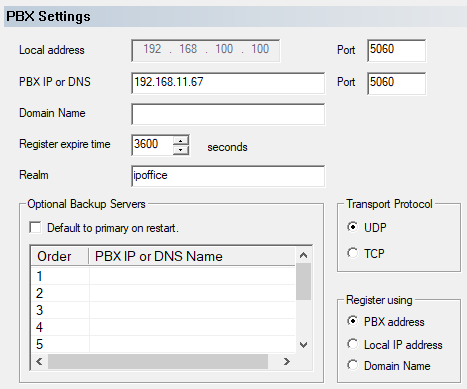
| Setting | Description |
|---|---|
| PBX IP or DNS | Enter the IP address or FQDN of the IP Office. |
| Domain Name | If you chose to use a domain under System LAN1 enter it here. |
| Register expire time | Enter 3600. IP Office systems older than version 11 require this field to be 180. |
| Realm | Enter ipoffice. |
| Register using | If you chose to use a domain on the System LAN1 tab, choose Domain Name, otherwise set to PBX address. |
Lines
Enable each line to register. If you chose to require the DuVoice lines to login enter a user account and password for each line. The IP Office defaults to the extension number as the account.
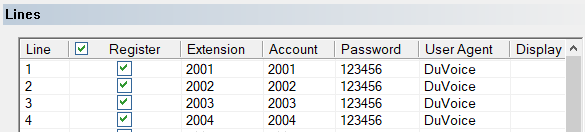
Mailboxes
Add the RestrictPhone notification template to each guest mailbox.
Hospitality Integration
For IPO v12.0+, hospitality integration requires DLL fix.
The HowTo article on this DLL fix, can be found here.
IP Office Configuration
Ensure an Avaya technician has installed IP Office Manager Suite application onto the DuVoice server.
DuVoice Configuration
Site | Profile
For each IP Office at a location a separate profile is required in order to perform name changes.
When using multiple IP Office's at a site, you must create a new profile for each of PBX. Then configure all the guest mailboxes located on a specific PBX within it's own profile. This is due to the Avaya User Configuration API not currently supporting changing names and class of service across a solution.
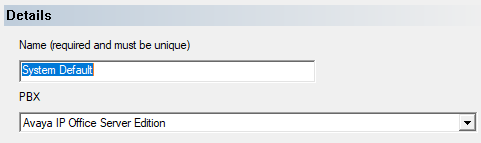
| Setting | Description |
|---|---|
| PBX | Choose the correct IP Office for this profile. Ether Avaya IP Office for IP500 systems or Avaya IP Office Server Edition for Server Edition. |
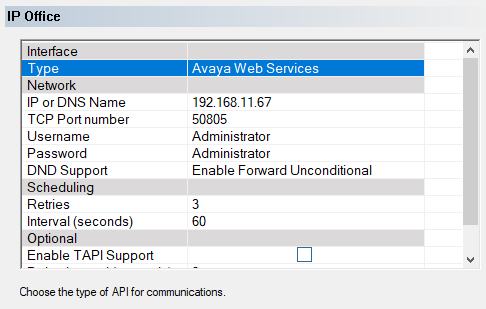
| Setting | Description | |||
|---|---|---|---|---|
| IP or DNS Name | Enter the IP address or the FQDNS name for this PBX. | |||
| TCP Port Number | Set to 50805 | |||
| Username | Enter the username for making changes. Default is Administrator. | |||
| Password | Enter the password for the user account making changes. Default is Administrator. | |||
| DND Support | DND support is not recommended as it will block wakeup calls to guest rooms. If DND support is required set to Enable | Forward Unconditional. | DND Checkbox should not be used unless using TAPI and voicemail is set to Group voicemail on the PBX. | |
| Enable TAPI Support | Leave this field unchecked unless using Analog extensions or system is configured for Station Monitor. |
EAS Integration
Refer to the EAS HowTo page here.