Table of Contents
RingCentral
- The DuVoice DV2000 provides hospitality features to RingCentral hosted VoIP service.
- The features include a link to the property management system (PMS) to push the guest names into the RingCentral guest room extension profile, allow housekeeping to use the guest room telephone to report room clean/dirt status to the PMS, guest wake-up calls and guest voice mail.
- The DV2000 connects to the RingCentral system using a combination of standard SIP extensions and through a RingCentral App developed by DuVoice.
- New or existing guest VoIP or analog telephones can be used in the application.
- The features will meet and/or exceed any existing on premise based PBX solution.
Features
- Forward guest extension to DV2000 for guest voicemail.
- Auto login to guest mailbox with no password.
- Wake-up calls set by guest or staff.
- Extension or telephone (DID) number based.
- First and last name change in RingCentral.
- Room Clean/Dirt Status from guest room telephone.
- Set DND or wake-ups from PMS.
- Guest room telephone restrict/un-restrict using roles.
Requirements
- DuVoice 8.0.33 or above.
- One extension per room.
- One user and extension created per DV2000 port.
- Call Queue for DV2000.
- DuVoice RingCentral App added through Super User account.
Network Considerations
- Two NIC connections are recommended (not required) to separate the VoIP and PMS data links.
- Two NICs are provided on a DuVoice Nano appliance.
MWI Integration
- For MWI configuration, please refer to our SIP notify page here.
- Please note: RingCentral does not support direct 'To PBX' MWI integration.
- If using SIP phones, follow the 'To Phones' page.
- If using SIP gateways with analog phones, follow the 'To Gateways' page.
Telephony Integration
RingCentral Configuration
- Confirm you have the right admin permissions.
- RingCentral says admins can add licenses, desk phones, and phone numbers.
- Without purchasing permissions, you can still assign users, but not new purchases.
- Sign in to the RingCentral Admin Portal.
DuVoice Extension Creation
- Repeat this process to create additional User Extensions for the DV2000 ports:
- The DV2000 requires one user extension per port.
- Go to RingCentral Admin Portal Home Page.
- Quick Access Menu
- Users submenu
- Add user:
- Choose user type:
- Base license should work just fine.
- Select
RingEX user.
- Add user info:
- Require unique email IDs:
unchecked - email: enter an email address (something that someone on site has access to - not used by DuVoice).
- Firstname:
DuVoice - Lastname:
Port 1 - Ext:
<duvoice-extension-port-01>- (Something that works for their dial plan).
- Phone:
Bring your own device. - Number: set state and area code (local to site’s location).
- Setup Options:
- You May Select
Activate Later, but if not:- Password: (Create something strong and random - not used by DuVoice)
- Pin: (Create something strong and random - not used by DuVoice)
- Security Question: (create something strong and random - not used by DuVoice)
- Emergency Responce location: You should have the ability to pick the site’s address.
- Example Image(s):
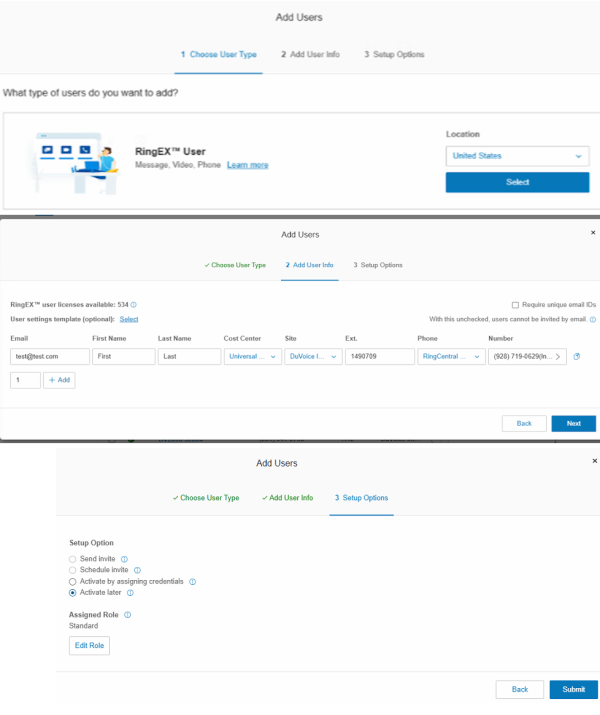
DuVoice Extension Settings
- Return to RingCentral Admin Portal Home Page.
- At top of page click on 'users'.
- On this new page under 'user list':
- Click 'Users with extensions'.
- Find and select: DV2000 Port 1
- On the right under
<duvoice-extension-port-01> - 'Phone' drop down
- Incoming call rules
- enable this option:
audio while connecting
- expand 'Hold' drop down:
- Under 'missed calls'
- forward to:
<frontdesk-extension-number>
- Example Image(s):
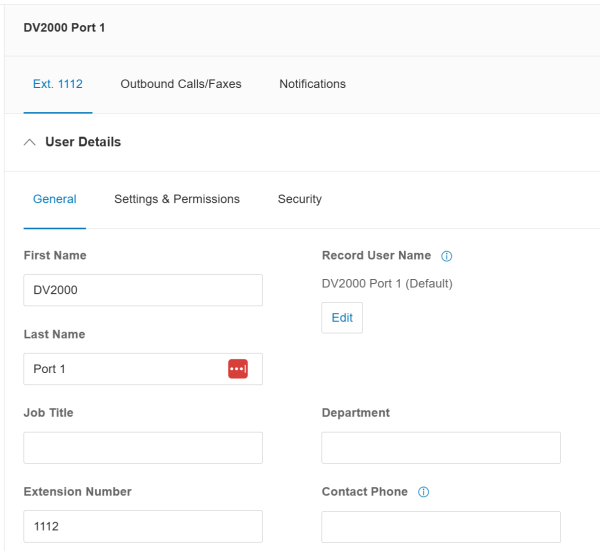
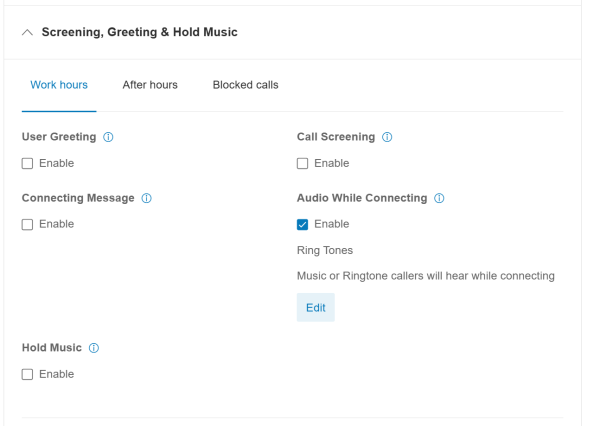
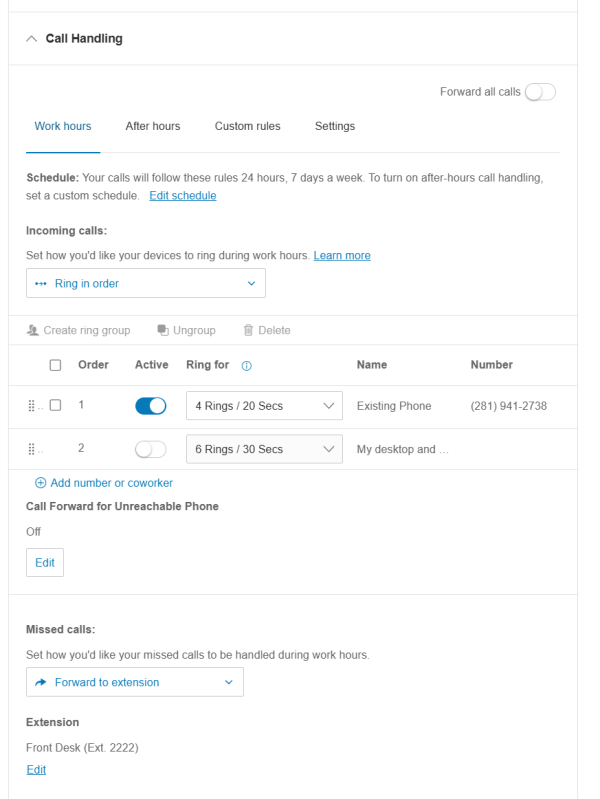
DuVoice Extension Provisioning
- Return to RingCentral Admin Portal Home Page.
- At top of page click on 'users'.
- On this new page under 'user list':
- Click 'Users with extensions'.
- Find and select: DV2000 Port 1
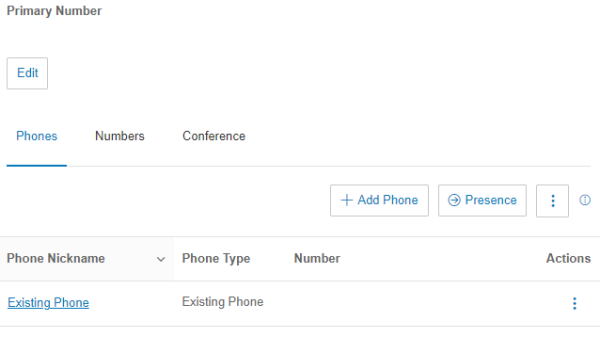
- Expand this drop down menu: 'devices and numbers'.
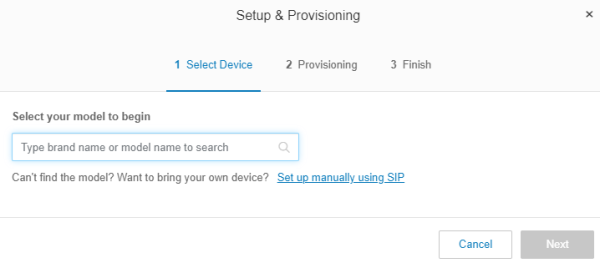
- Existing phone
- Actions column
- Click the 3 dots
- 'Setup and provision'
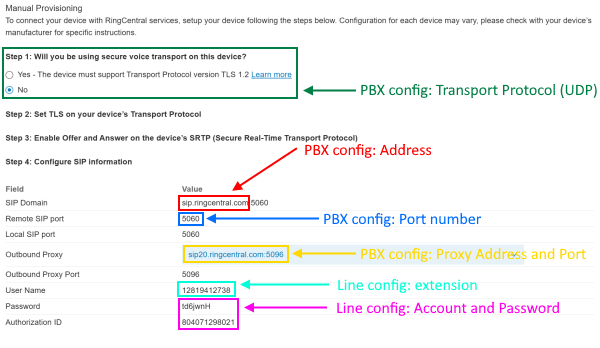
*These settings for each extension must be provided to the DuVoice tech to enter into the DV2000 configuration:
Create the DuVoice Voicemail Call Queue
- Return to RingCentral Admin Portal Home Page.
- Under the 'Quick Access Menu' section.
- Find the 'Groups' submenu.
- Click the 'Create Call Queue' option.
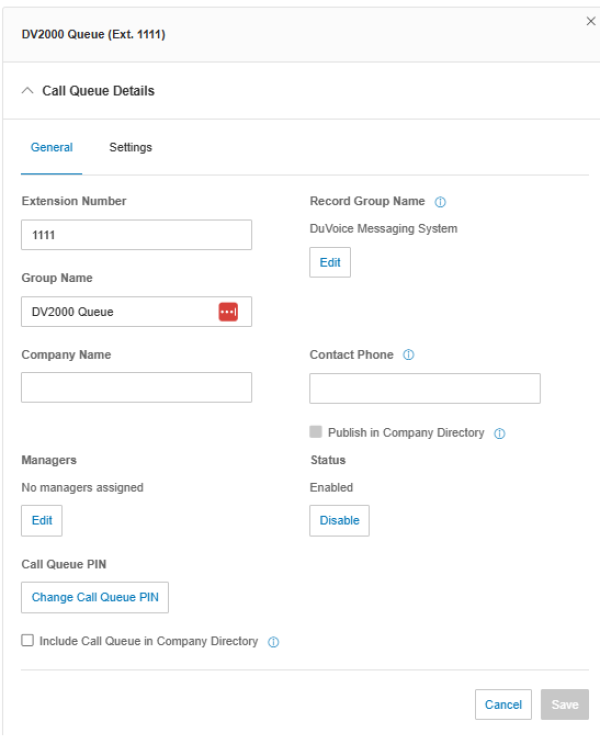
- Extension Number:
- Pick something that works with the call queue.
- Group Name:
DV2000 Queue.
Configure DuVoice Call Queue
- Change these settings of the queue:
- Call Handling and members:
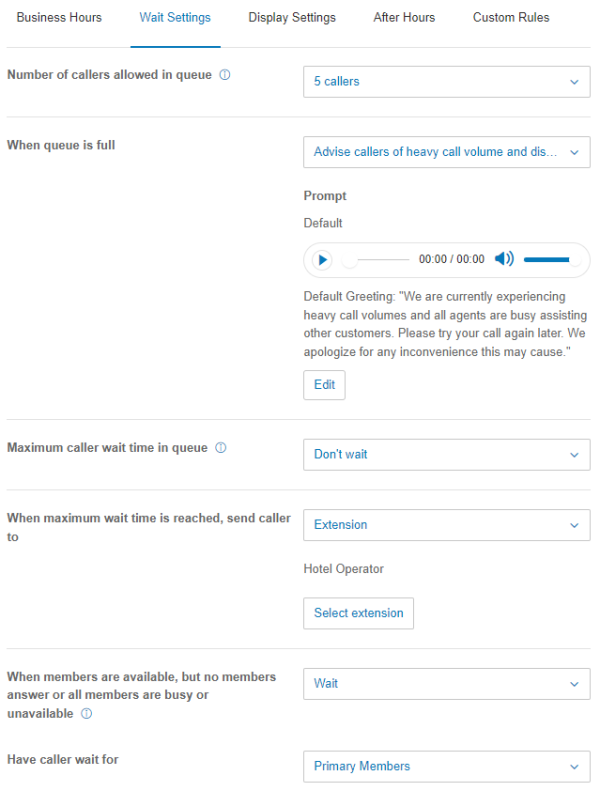
- Wait Settings:
- When queue is full:
advise callers of heavy call volume and disconnect. - Max wait time:
3 minutes. - When max time is reached, send caller to:
- Extension:
- Select RC’s internal AA#.
- When members are available but no members answer or all members are busy or unavailable:
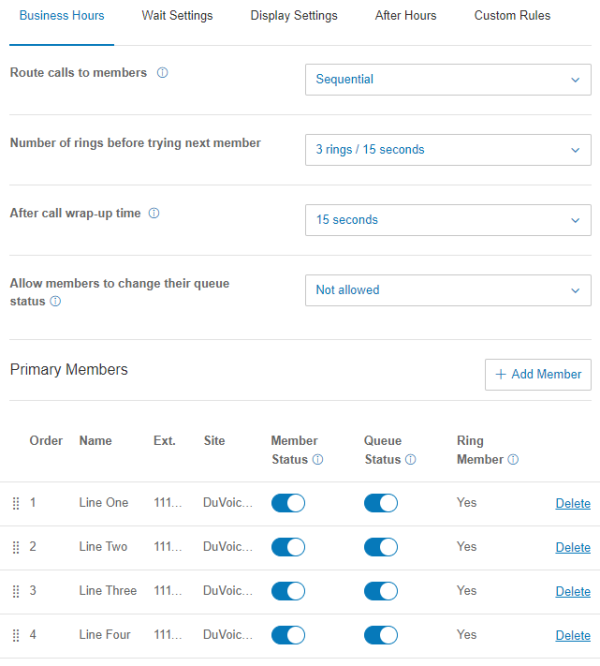
wait for primary members. - Route calls to members:
sequential. - Number of rings before trying next member:
3 rings. - After call wrap-up time:
15 seconds. - Allow members to change their queue status:
not allowed. - Primary members: select all DuVoice ports.
- Example Image(s):

Guest Extension Creation
- This portion should be done by the phone system admin.
- To add several users at once, enter the number of users next to Add, then click Add.
- You are limited to adding a max of 25 users at a time.
- You can also duplicate an entry and then change the first name, last name, and email.
- Return to RingCentral Admin Portal Home Page.
- At top of page click on 'users'.
- Click Users with Extensions.
- Click Add User.
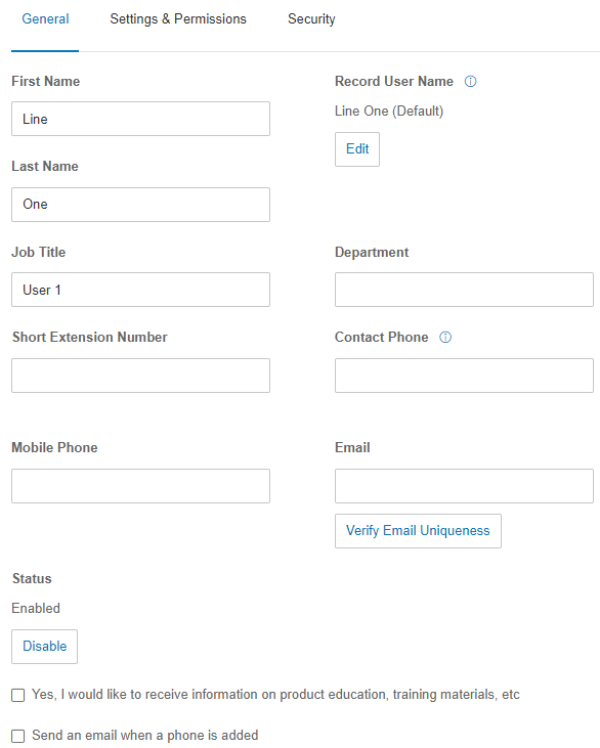
- 1. Choose User Type
- Select the user type:
RingEx User- The base license should work.
- 2. Add User Info:
- Enter the user details:
- Email address:
- Firstname:
- Lastname:
- Cost Center:
- Extension:
- Phone:
- Number:
- 3. Setup Options:
- Choose Activate later.
- Example Image(s):
Guest Extension Configuration
- This portion should be done by the phone system admin.
- These settings need to be done for every Guest Extension.
- Return to RingCentral Admin Portal Home Page.
- At top of page click on 'users'.
- Click Users with Extensions.
- Find the Extension you would like to edit.
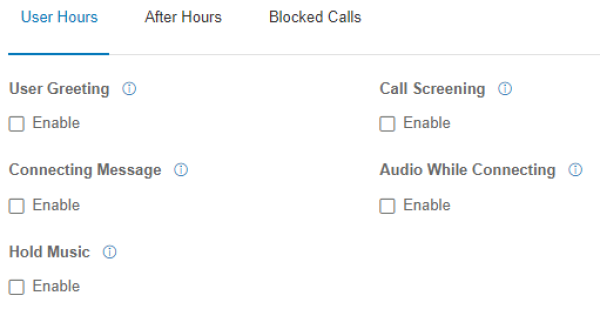
- A few settings need to be disabled:
- User Greeting.
- Connecting Message.
- Hold Music.
- Call Screening.
- Audio While Connecting.
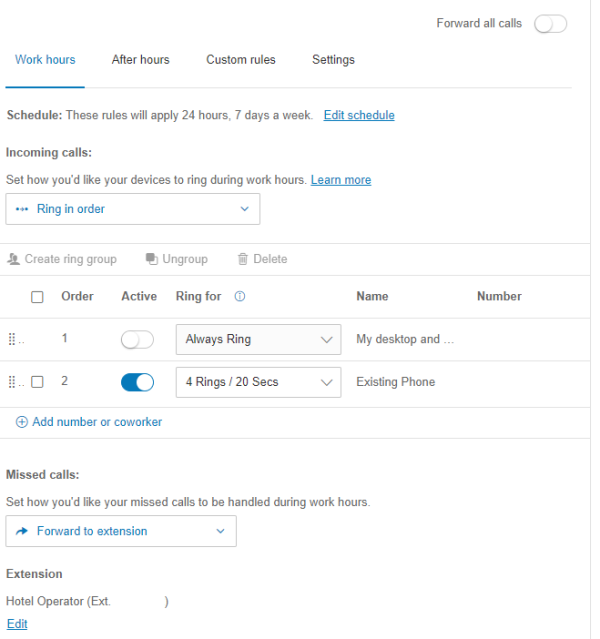
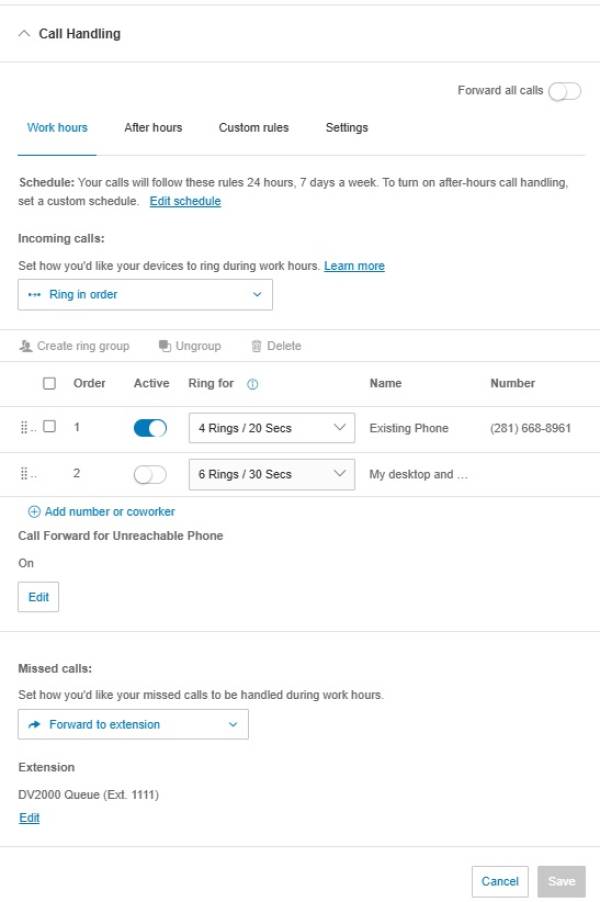
- Call Handing drop down:
- Missed Calls:
- Select
Forward to Extension.- Extension
- Edit
- Set to:
DV2000 Queue.
- Example Image(s):
DuVoice Configuration
Telephony
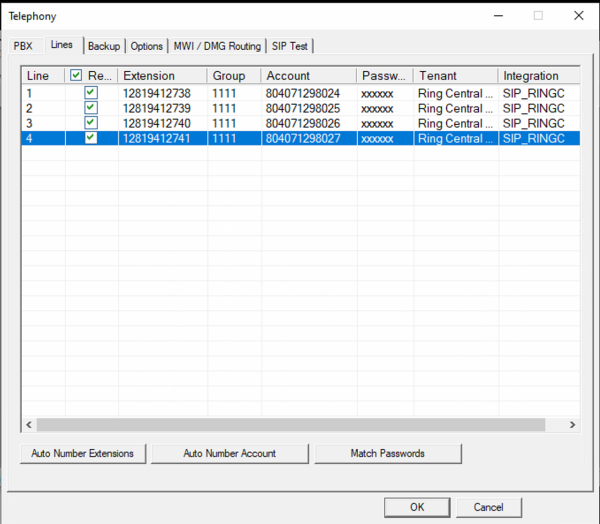
Line Tab
PBX Tab
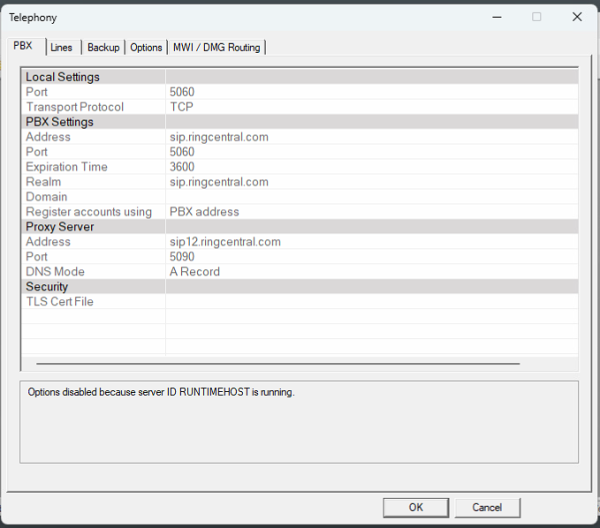
Note: Proxy server port number despite showing as 5096 within RingCentral configuration needed to be set to 5090 within DuVoice configuration for registration to occur.
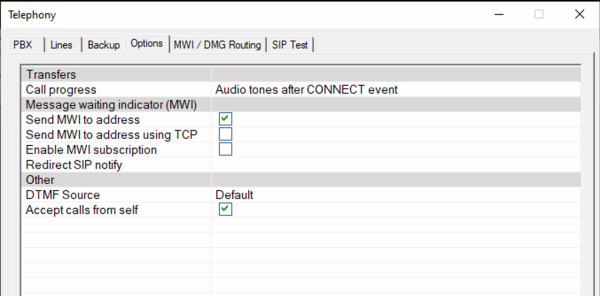
Options Tab
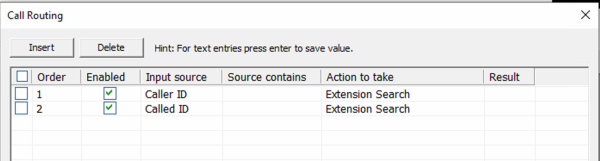
Call Routing
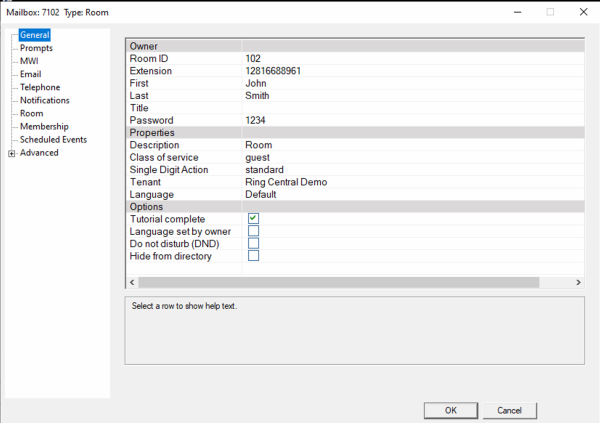
Mailbox Configuration
General
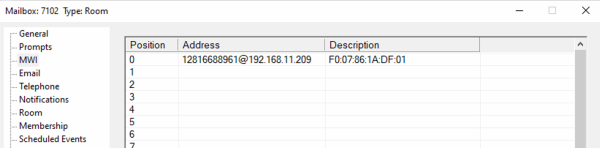
MWI address
Hospitality Integration
RingCentral Configuration
RingCentral JWT credential
- Create a virtual User.
- On the Ring Central Admin Portal Home Screen.
- Select Add User.
- Under User Type select Video Pro User.
- Add email (Note: this needs to be a unique email that someone from the site can log into and to finish setup).
- Enter First Name:
DV2000. - Last Name:
Hospitality. - Site: Select the organization (If more than one, group with hotel room users).
- Select Next.
- Setup Option:
Send Invite. - Edit Role:
Select Super User.
- Using the email that was sent select the Set-Up Account button.
- Enter a password (this email and password will be used for creating credentials below).
- Log into the DuVoice Hospitality Account.
- On the Ring Central Admin Portal Home Screen.
- Log in using the new credentials for the DuVoice Hospitality user.
- On right select Developer Portal.
- If required, use the same credentials for the DuVoice Hospitality user.
- On the Welcome screen select SKIP.
- On upper right you will see DuVoice with a drop-down arrow and select Credentials.
- Select Create JWT.
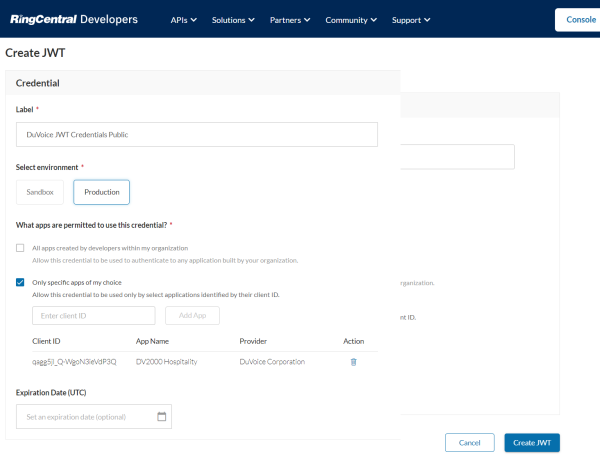
- For the Label enter DuVoice Hospitality.
- For the Environment select Production.
- For Apps Permitted select:
Only specific apps of my choice. - Enter Client ID #:
qagg5jl_Q-WgoN3ieVdP3Q.
- Then select Add App.
- You should see:
- App Name:
DV2000 Hospitality - Provider:
DuVoice Corporation - Leave Expiration Date blank.
- Select Create JWT (lower right).
- Copy the JWT onto the clipboard.
- Use the JWT Credential in the DV2000 configuration.
DuVoice Configuration
PBX Link
Profile
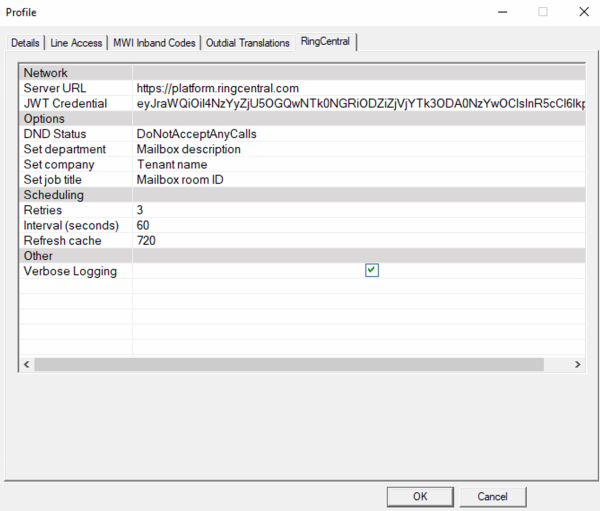
** More details on LINK-PBX configuration: https://support.duvoice.com/vs8/pbxlinks/ringcentral
Troubleshooting
Please visit the troubleshooting page here.