Upgrade From v6
When upgrading to DV2000 8 the existing database server must be upgraded. This upgrade must be performed manually to ensure their are no errors and is completed correctly.
The DV2000 must be running version 6.03.14 or above. If not please upgrade/update to the latest 6.3 prior to performing this upgrade.
Requirements
Instructions
Preparation
- Ensure there is enough disk space. We cannot predict how much space will be required, however a good rule of thumb would be to have triple the space used of an existing backup file located in C:\VMBACKUP. These files have the extension .vmb.
- DV2000 service must be stopped. This can be performed either via Activity Monitor or Windows Services.
Backup
Backup the existing database. This will ensure if the process fails a full copy of the database has been saved.
- Run Backup from the Windows start menu DV2000 Utilities | Backup, or from the command line via dvbackup.exe.
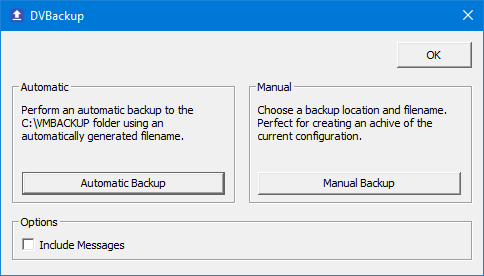
- Do not check Include Messages. Messages are not stored in the database and therefore do not need to be backed up.
- Choose Manual Backup and select a file name and location you can remember. We suggest C:\VMBACKUP\predbupgrade.vmb.
Data Export
Using the following method will export the existing database so that we can be restored later. No data will be deleted during this step.
- Open a CMD or Windows Powershell process window.
- Run the following command.
mongodump -d bandon -o c:\oem\dbv2 - Verify the folder c:\oem\dbv2 contains a folder called bandon and it contains multiple .json and .bson files of various sizes.
- If the folder is blank or contains no files, check for any errors while running mongodump.
- Leave this window open for performing the restore later.
Database Uninstall
We must first uninstall the existing database server from Windows Settings | Apps & features. This can also be performed using the control panel via Programs and Features.
- Choose MongoDB.
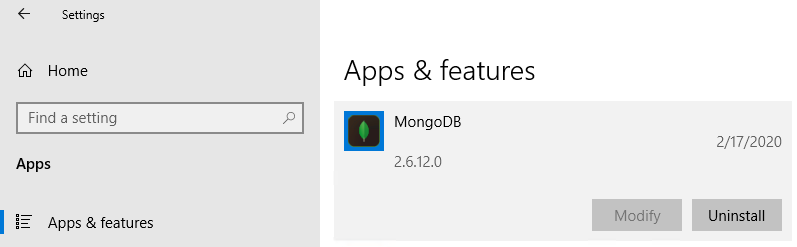
- Click Uninstall.
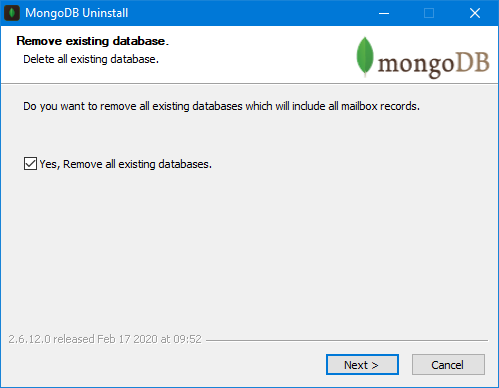
- Ensure the removal of existing databases is checked or the new install will fail.
Database Upgrade
Run the new database upgrade. It can be downloaded here.
Data Restore
This will restore the database content into the new database using the new server.
- Using the same process window before or from a new CMD or Windows Powershell process window.
- Run the following command.
mongorestore c:\oem\dbv2
Verification
- Open Mailbox Administration.
- Verify it shows your existing mailboxes.
- Verify a few mailboxes show information by double-clicking on one or more.
- If you are certain the restore was successful you may delete c:\oem\dbv2 to save space.
Upgrade
- For SIP enabled systems:
- Uninstall Dialogic HMP and reboot system when requested to do so.
- Install latest Dialogic HMP and follow the steps in this guide.
- Systems with Internet access:
- From the Windows menu run Start | DV2000 Support | Activate or Update Key (dvactivate.exe).
- Download the latest license.
- Verify the version shows 8 or 800.
- Systems without internet access:
- Acquire a new license file from DuVoice.
- Overwrite the exiting license.lic file located typically in c:\vs.
- Run the DV2000 8 install.