Import | Mailbox CSV
Import a list of mailboxes from a simple comma-separated value (CSV) file, which you should be able to export from any spreadsheet program. The advantage of Mailbox Import is that you can plan out all of your mailboxes in a simple spreadsheet and then add them en masse using this feature, rather than having to add them one at a time.
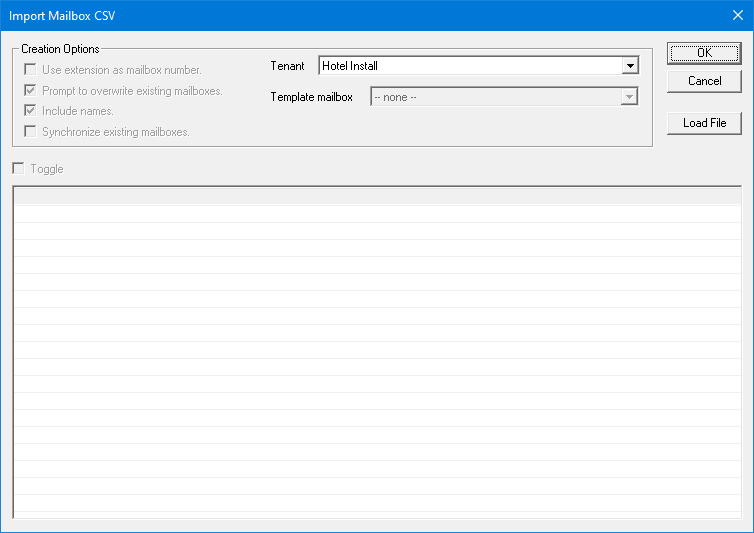
| Option | Description |
|---|---|
| Use extension as mailbox number | Check this option to use the specified extension number as the mailbox number to create; only valid if the CSV file contains the EXTENSION column. |
| Prompt to overwrite existing mailboxes | Check this option if you want the import routine to prompt you for permission before overwriting any mailboxes that already exist. This option is enabled by default but you can uncheck the box if you are certain you want existing mailbox data to be overwritten with the new data. |
| Include names | Uncheck this option if you don't want mailbox name information to be imported; the NAME, FIRST, and LAST columns will be ignored. |
| Synchronize existing mailboxes | Check this option if you want to synchronize the imported data with existing mailboxes. If the mailbox does not exist, it will be created. In this mode, if a column does not contain information, it will not overwrite the existing field. |
| Template mailbox | If a template mailbox is specified, the import routine will copy all relevant mailbox data, including mailbox type, from this mailbox to the new mailbox. It will then update any mailbox data fields for which a new value is specified in the CSV file. Prompts and forwarding will not be copied. Note Only mailboxes of the same type may be imported. This also ignores the tenant selection and the TYPE column within the CSV file. |
CSV File Format
The CSV file may be created using any standard text editor (such as Notepad) or may be exported from a spreadsheet program. Save the file with the .CSV file extension.
To save a spreadsheet file as a CSV follow these steps (exact process may vary slightly depending on which version of the given software you are using):
- For Microsoft Excel, select File | Save As and in the Save as type selection box, choose CSV (MS-DOS).
- For LibreOffice Calc, select File | Save As and in the Save as type selection box, choose Text CSV (.csv) (*.csv).
- For a Google Drive spreadsheet, select File | Download as | Comma Separated Values (.csv, current sheet).
As with any CSV file, each line represents a single record. In this case, each line (except the first) represents a single mailbox or group of mailboxes. The first line is always used to tell Mailbox Administration what each column (or field) represents. The following table defines the valid column names. Note that they are not case sensitive, nor is there a required field order.
| Column Name | Description |
|---|---|
| MAILBOX | Mailbox number to be used. |
| TYPE | Mailbox type to use: User, Guest, Distribution, Group, or QA. |
| FIRST | Mailbox first name. |
| LAST | Mailbox last name. |
| TITLE | Mailbox title. |
| EXTENSION | Mailbox extension. If the field is left blank or the column is not specified, the extension will be set to the mailbox number by default. |
| NAME | Mailbox name. This value is placed in the Last Name field of the mailbox record and the First Name field is left blank. However, if FIRST and LAST are specified, they will override this value. |
| PASSWORD | Default password for the mailbox(es). Must be a numeric value. Subscriber will not be able to log in if the password contains any non-numeric characters. |
| DESCRIPTION | Text to put in the Description field (no more than 60 characters). |
| COSFILE | Class of service to assign to the mailbox(es). You must specify the full path and filename, not just the filename by itself. |
| SDAFILE | Single Digit Action (SDA) template to assign to the mailbox(es). You must specify the full path and filename, not just the filename by itself. |
| LANGUAGE | The ID number for the language to assign to the mailbox(es). A value of 0 means the mailbox(es) will use the default system language, whatever it may be. |
| RANGE START | Starting mailbox number of a range to create. You must also specify RANGE STOP. The range is inclusive. If any mailbox in the range already exists, it may be overwritten. |
| RANGE STOP | Ending mailbox number of a range to create. |
| MWI n | Message waiting addresses (n = 0 to 9). |
| EMAIL n | Email addresses for email notification and/or VeMail (n = 0 to 9). |
| PAGER n | Pager addresses (n = 0 to 9). Note that setting the pager display values via mailbox import is not supported. |
| MAILBOX n | Mailbox number addresses, for auto-forwarding (n = 0 to 9). |
| MAC | MAC address assigned to the mailboxes extension. |
| PHONE n | Telephone number addresses (n = 0 to 9). |
| SIPADDRESS n | SIP address (n = 0 to 9). Format as: extension@ip_address (e.g., 530@192.168.1.10). Only used with the SIPX MWI method. |
| ROOMID | Optional unique guest room ID. Only relevant for mailboxes of type Guest. |
Data fields may be enclosed in double-quotes, but it is not required. Every line must have the same number of commas, even if some fields are left blank (see examples below).
For example:
MAILBOX,TYPE,FIRST,LAST,RANGE START,RANGE STOP
300,,John,Smith,,,
,Guest,,,601,609
In this example, the first line specifies that the columns are the mailbox number, the mailbox type, the first and last names, and the start and end range values. The first record creates a single mailbox, 300, with the first name John and the last name Smith and all other settings defaulted. The second record creates 9 guest mailboxes, numbered 601-609, and uses the appropriate defaults for all other settings.
If the mailbox type is not specified in the CSV and no template mailbox was specified a User mailbox will be created.